
PDF to Word, Excel or PowerPoint: What Can You Edit?
NivaFile documentation · Updated · About these guides
Use PDF to Word for editable paragraphs, PDF to Excel for selectable rows, or PDF to PowerPoint when you need the page to look the same on a slide. Try all three with the same sample PDF and compare what you can edit.
Choose by what you need to change
Choose DOCX to rewrite sentences. NivaFile exports selectable words into paragraphs. Check the reading order in two-column reports and add back any images or tables you need.
Choose XLSX to work with rows of selectable text. The exporter uses text positions and spacing to put values in cells, which it stores as text. Check the layout and convert values to numbers before calculating totals.
Choose PPTX to present the page as it looks. The converter puts a page image on each slide. In NivaPowerpoint you can add a caption or mark up the slide with separate shapes and text boxes. The wording baked into the image stays part of the picture.
Tell a scan from a text PDF
Try selecting a word in the PDF. If you can only select the whole page, run English OCR to add a searchable layer, then try the document or workbook export again. Verify names and numbers against the original. A searchable layer can still produce irregular columns.
The image-based presentation export can use a readable scan without OCR. Keep the original PDF if the recipient needs searchable text or links.
Keep an editable copy and a sharing copy
After converting, choose Edit in NivaWord, NivaExcel or NivaPowerpoint. The converted file moves through browser storage on this device. Choose the native Office format when downloading a file you plan to edit again, or PDF for a fixed-layout sharing copy.
For PDF output from a workbook, choose the current worksheet or all worksheets. Set orientation and margins in Page Layout, then open the exported PDF and check the rightmost columns and page breaks.
Compare three exports of the same report
The sample is one page with two text columns, two colored shapes, and item rows that list 5 and 7 units.
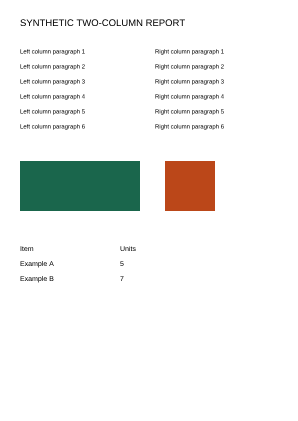
- Download the sample and run PDF to Word. Open the DOCX in NivaWord, find “Left column paragraph 1,” and change the wording. Download the DOCX and reopen it to check the edit.
- Run PDF to Excel with the same PDF. Open the XLSX in NivaExcel and find the Example A and Example B rows. Re-enter 5 and 7 as numbers in two empty cells, then add those cells. The total should be 12.
- Run PDF to PowerPoint with the original sample. Open the PPTX in NivaPowerpoint, add a text box above the slide image, and export a one-slide PDF.
What to expect: The DOCX keeps editable words, the XLSX holds extracted values as text, and the PPTX preserves the visible page as an image.
Check your result
- Read both text columns in the DOCX and compare their order with the PDF.
- Confirm that only the unit values are included in the workbook total.
- Check the colored shapes and your new caption on the exported slide.
If the result is not what you expected
- The DOCX loses the colored shapes or original columns.
Reuse the original report if layout is important, or choose PPTX to show the whole page.
- The workbook total is wrong.
Check cell types and verify the extracted rows against the original before using a formula.
Found an unclear step or a tool that behaves differently? Send a correction with this guide’s link and a description. Keep private documents out of the message.